Home › Guides › Save letterhead as PDF
How to Save a Letterhead as a PDF Without Losing the Layout
A PDF freezes your letterhead exactly as you designed it, so it looks the same on every screen and printer. Here's how to make one from Word, Google Docs or a browser, and what to check before you send it.
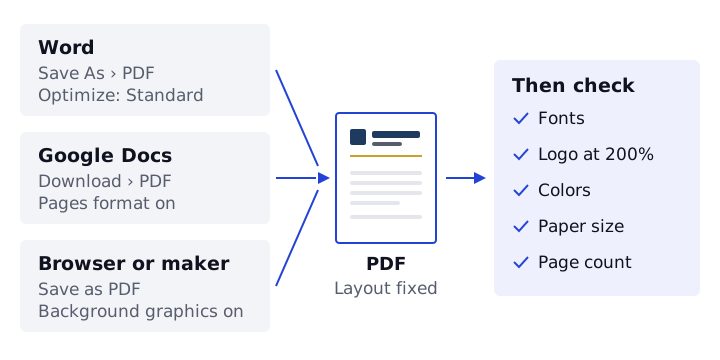
Quick answer: in Word, use File › Save As and choose PDF as the file type. In Google Docs, use File › Download › PDF Document. From a browser, open the print dialog and choose Save as PDF as the printer, with Background graphics turned on. Then open the PDF and check the fonts, logo, colors and page count before sending it.
Why a PDF keeps the layout
A Word or Google Docs file is rebuilt every time someone opens it. If their computer is missing your font, or they open it in a different editor, lines can wrap differently and the header can shift. A PDF records the finished page, usually with the fonts embedded, so the reader sees what you saw.
That makes PDF the right format for sending a finished letter, printing a stack of letterhead, and sending artwork to a print shop. Keep the Word or Google Docs file as your editable master.
Save as PDF from Word on Windows
- Choose File › Save As (or Save a Copy in some versions), then pick a folder.
- In Save as type, choose PDF (*.pdf).
- Under Optimize for, choose Standard for printing and most email. Minimum size makes a smaller file by reducing image quality, which can blur a logo.
- Click Save.
File › Export › Create PDF/XPS Document does the same thing from a different menu.
Save as PDF from Word on Mac
- Choose File › Save As, or File › Export in recent versions.
- Set File Format to PDF.
- If Word offers a choice between a print-quality option and one for electronic distribution, choose the print-quality option for letterhead you'll print, or if the other option changes your layout.
- Click Save or Export.
You can also choose File › Print and use the PDF menu in the macOS print dialog to save as PDF. If links matter to you, check that they're still clickable in the PDF, whichever method you use.
Download a PDF from Google Docs
- Check the document is in Pages format under File › Page setup, so the header and footer are included.
- Choose File › Download › PDF Document (.pdf).
- The PDF saves to your downloads folder. Open it and check it.
Google Docs fonts come from the web, so the PDF keeps them even if the reader doesn't have them. If you imported one of our Word templates, see letterhead templates for Google Docs for what to check after importing.
Save as PDF from a browser, including our maker
The letterhead maker makes its PDF through your browser. Print or save as PDF opens the print dialog with the page set to your chosen paper size and zero page margins, so the design sits exactly where it does in the preview.
- Chrome and Edge: set Destination to Save as PDF. Under More settings, tick Background graphics and keep the scale at Default.
- Safari: tick Print backgrounds, then use the PDF menu at the bottom of the dialog and choose Save as PDF.
- Firefox: choose a PDF destination, tick Print backgrounds and keep the scale at 100%.
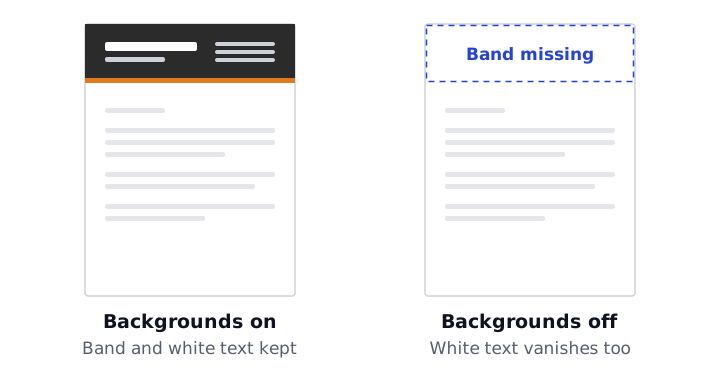
Without background graphics, color bands, sidebars and filled shapes are left out of the PDF. If a date, page title or web address appears at the edge of the page, turn off Headers and footers in the print dialog.
The maker's PDF is one page. If you've typed a letter that's longer than the page, it asks you to shorten it. For a longer letter, download the Word file and save the PDF from Word.
Check the PDF before you send it
- Fonts. Zoom in on the name and contact details. If they look like a different typeface from your design, the font wasn't available or wasn't embedded. In Adobe Acrobat Reader, File › Properties › Fonts lists the fonts in the file.
- Logo. Zoom to 200% or more. A blurry or jagged logo usually means the original image was too small. Replace it with a larger PNG or an SVG and save the PDF again.
- Colors. Check bands and fills are present. If they're missing from a browser PDF, background graphics were off.
- Paper size. The PDF should be US Letter or A4 to match your document. A mismatch can cause clipping later. See how to print letterhead without cutting off the design.
- Page count. Make sure there's no extra blank page at the end, which often comes from an empty paragraph after the closing.
- Links. If your email and website should be clickable, click them in the PDF.
File size
A one-page letterhead PDF is normally small enough to email without trouble. If yours is unexpectedly large, the cause is almost always an oversized image, such as a full-resolution photo used as a logo. Resize the image to roughly the size it prints at before inserting it, rather than relying on a low-quality PDF setting. In Word, the picture tools include a Compress Pictures option that can reduce image resolution in the document.
PDF for a print shop vs PDF for email
| For email or office printing | For a print shop | |
|---|---|---|
| Page size | Exactly US Letter or A4 | Page size plus bleed if color runs to the edge, usually 0.125 in (3 mm) on each side |
| Images | Clear at normal zoom | High resolution, around 300 dpi at printed size |
| Fonts | Embedded | Embedded, or converted to outlines if the printer asks |
| Letter text | Included | Usually none: you're ordering blank letterhead |
| Color | Screen color is fine | Ask whether the printer wants CMYK or a spot color |
A PDF from the maker, Word or Google Docs is exactly page size, with no bleed. That's fine for designs with white space around the edges. For edge-to-edge color, ask your print shop for its file requirements before ordering. Our letterhead printing guide explains bleed, paper and ordering.