Home › Guides › Save as Word template
How to Save a Letterhead as a Word Template (.dotx)
A Word template turns your letterhead into a starting point instead of a file you keep overwriting. Each new letter opens as a fresh, untitled copy and the original stays untouched.
Quick answer: open your letterhead in desktop Word, delete any sample letter text, then choose File › Save As and pick Word Template (*.dotx) as the file type. Save it where Word suggests. To write a letter, go to File › New and choose your template from the personal templates. Word opens an untitled copy, so the template itself never changes.
Why save a letterhead as a template
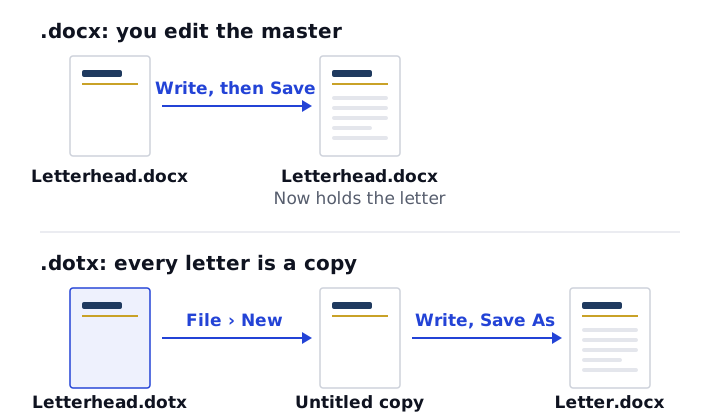
If you keep your letterhead as an ordinary .docx and write each letter in it, sooner or later you'll click Save instead of Save As and overwrite the master with last week's letter. A template avoids that.
- Every letter starts clean. Opening a template creates a new, untitled document. You have to name it when you save.
- The design stays consistent. Margins, fonts, header, footer and logo are the same in every letter.
- It's quick to reach. Templates in Word's personal templates folder appear in File › New.
.docx vs .dotx
| .docx (document) | .dotx (template) | |
|---|---|---|
| Double-click opens | The file itself | A new, untitled copy based on it |
| Saving changes | Overwrites the file | Saves a separate new document |
| Best for | A single letter | A letterhead you reuse |
| Macros | Not stored | Not stored (use .dotm if you need macros) |
Both formats hold the same content: text, styles, headers, footers and images. The difference is how Word treats the file when you open it.
Prepare the letterhead first
- Open your letterhead in desktop Word. If you started from one of our free Word templates or the letterhead maker, open the downloaded .docx.
- Replace the placeholder name and contact details in the header and footer with your own, and add your logo if it isn't there yet.
- Decide what the letter area should hold. Our downloads include placeholder lines such as [Date] and [Recipient Name], a closing and a short paragraph of instructions. Keep the placeholders you find useful and delete the rest.
- If you want the full letterhead on page one only, set that up now with Different First Page. The Word letterhead tutorial shows how.
- Print one test page and fix anything that's off before you save the template.
Save as a Word template on Windows
- Choose File › Save As, then Browse if Word shows recent folders first.
- In Save as type, choose Word Template (*.dotx).
- Word usually switches the folder to Custom Office Templates inside your Documents folder. Leave it there so the template shows up in File › New.
- Give it a clear name, such as "Letterhead" or "Letterhead – First page only", and click Save.
Save as a Word template on Mac
- Choose File › Save As. Some versions also offer File › Save as Template, which does the same thing.
- Set File Format to Word Template (.dotx).
- Word for Mac normally suggests its own templates folder. Keep that location so the template appears when you create a new document from a template.
- Name it and click Save.
The exact menu wording varies between Word versions. If you can't find the template option, you may be using Word in a browser, which doesn't work with templates the same way. Use the desktop app, or keep a master .docx and duplicate it before each letter.
Start a new letter from the template
- Windows: choose File › New, then the Personal tab (it sits next to Office or Featured templates). Click your letterhead.
- Mac: choose File › New from Template and look for your template in the personal or "My Templates" section.
- Either: double-clicking the .dotx file in File Explorer or Finder also opens a new document based on it.
The new document is untitled. Write your letter, then save it as a normal .docx with a name that says what it is, for example "2026-11-11 Letter to Brooks".
If the Personal tab doesn't appear on Windows, Word may not know where your templates are. Check File › Options › Save and look for the default personal templates location. It should point to the folder where you saved the .dotx.
Edit the template later
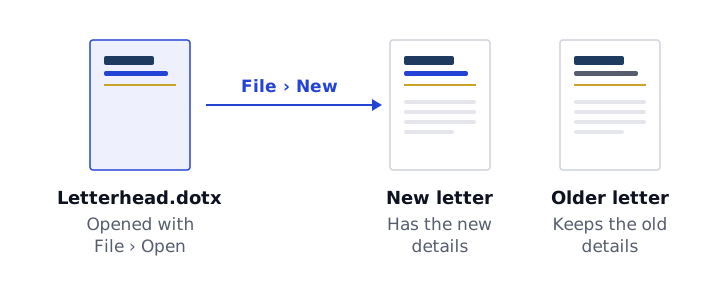
Because double-clicking a template creates a new document, you have to open the template itself to change it:
- In Word, use File › Open, browse to the templates folder and open the .dotx directly.
- On Windows, you can also right-click the .dotx in File Explorer and choose Open rather than New.
Make your changes, such as a new phone number or an updated logo, and save. The title bar should show the .dotx name, not "Document1". Letters you wrote earlier don't change; only new letters pick up the update.
Share the template with a team
- Send the .dotx file. Each person saves it in their own templates folder, using the steps above, and starts letters from File › New.
- Use a shared folder. Word for Windows can show templates from a shared location as workgroup templates. Your IT team may already manage this, or provide organization templates another way.
- Use fonts everyone has. If a colleague doesn't have your font, Word substitutes one and the layout can shift. Our letterhead font guide lists safe choices.
- Keep one master. When details change, update the master and send it out again, then ask people to replace the old copy.
Google Docs and Pages
Google Docs doesn't use .dotx files. The usual approach is a master document you never write in, and File › Make a copy for each letter. Some work and school accounts also have a shared template gallery. See letterhead templates for Google Docs.
Apple Pages can open a Word file and has its own File › Save as Template option, which adds the design to the Pages template chooser. Check the header and logo after importing, as layouts can shift between editors.