Home › Guides › Letterhead on every page?
Should a Letterhead Appear on Every Page?
A letter that runs to two or more pages raises a simple question: does the full letterhead repeat? Here's the traditional answer, what to put on page two instead, and how to set it up.
Quick answer: traditionally, only the first page of a letter carries the full letterhead. Pages two onward use a plain continuation sheet, or a small header with your name or logo, the recipient's name, the date and the page number. In Word and Google Docs, turn on Different first page to do this. Repeating the full letterhead on every page isn't wrong, it's just less conventional and takes space from the letter.
The traditional rule
Printed stationery has long come in two parts: a letterhead sheet with the full design for page one, and continuation sheets (also called second sheets) for every page after it. Continuation sheets are the same paper, often with nothing printed on them, or with only a small logo or name.
The reasoning is practical. The full letterhead tells the reader who the letter is from. They already know that by page two, so repeating it only pushes the text down and can turn a two-page letter into three.
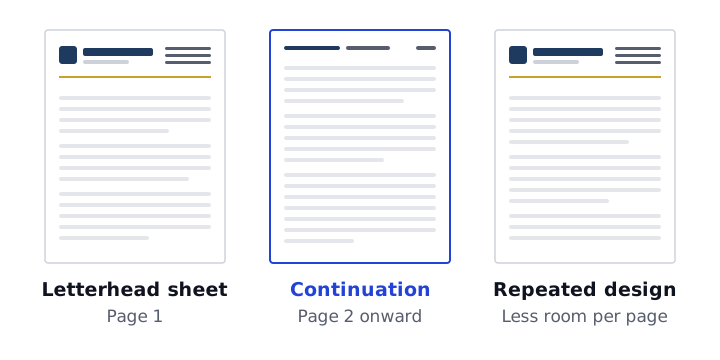
When repeating it on every page is fine
There's no rule that forbids a repeating letterhead. It can make sense when:
- Pages may get separated. Reports, proposals and multi-page notices that might be photocopied or filed individually benefit from identification on every sheet.
- The letterhead is compact. A thin header, such as a single line with your name and a divider, costs very little space.
- Your organization has a style guide that asks for it. Follow your house rules first.
If your design is tall, uses a color band or lists many names down a sidebar, a lighter header for page two usually looks better.
What a second-page header should contain
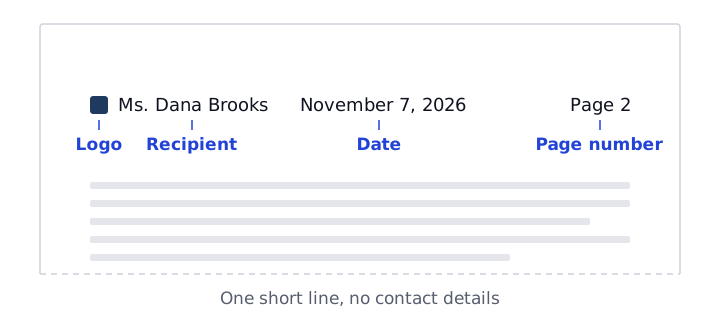
A continuation header exists so the reader can match loose pages back together. Keep it to one or two lines in small type:
| Element | Why it's there |
|---|---|
| Your name or a small logo | Identifies the sender without the full letterhead |
| Recipient's name | Shows which letter the page belongs to |
| Date | Distinguishes it from other letters to the same person |
| Page number | Keeps pages in order, for example "Page 2" |
A typical continuation header reads something like: Ms. Dana Brooks · November 7, 2026 · Page 2. Line it up with the left margin of the letter, or spread it across the page with the name on the left and the page number on the right. Leave contact details off; they're on page one.
Set a different first page in Word
Word repeats the same header on every page by default. To give page one the full letterhead and later pages a simpler header:
- Double-click the header to open it, then select everything in it and copy it.
- Turn on Different First Page. It's a checkbox on the header and footer tab that appears on the ribbon while the header is open. The first-page header may now look empty.
- Click into the area labeled First Page Header and paste your letterhead.
- Add a second page (Insert › Page Break) so you can see the regular header. Delete the full letterhead there and type your continuation line instead.
- To add a page number to that header, place the cursor where you want it and use Insert › Page Number, choosing the current position option.
- Check the footer too. If your contact details are in the footer, decide whether they should appear on page one only.
Turning on the setting doesn't copy your existing letterhead into the first-page header, which is why you copy it first. The Word letterhead tutorial walks through the same sequence with the rest of the setup.
Set a different first page in Google Docs
- Make sure the document is in Pages format (File › Page setup). Headers aren't shown in pageless mode.
- Double-click the header and copy its contents.
- Tick Different first page, which appears below the header while you're editing it.
- Check page one. If the header is now empty, paste the letterhead back in.
- Go to page two and replace the header with your continuation line. Add page numbers with Insert › Page numbers.
Google occasionally changes where these options appear, so if you don't see the checkbox, look for header options under the Format menu. See letterhead templates for Google Docs for importing and editing a Word design.
Our templates and maker
The Word files from our free templates and the letterhead maker put the letterhead in a single header that repeats on every page. If you want first-page-only letterhead, follow the Word or Google Docs steps above after you download. The template's sample text includes a short reminder of the same steps.
Printed stationery: letterhead plus continuation sheets
If you order printed letterhead, order plain continuation sheets on the same paper at the same time, so the color, weight and texture match. Many people order fewer continuation sheets than letterhead sheets, since most letters are one page.
When you print a letter onto preprinted stationery:
- Remove the letterhead from the document before printing, or you'll print it twice. Keep a "print on stationery" version of your template with an empty header and the same top margin.
- Load the sheets the right way up. Print one test page on plain paper, mark the top edge, and check which way your printer feeds.
- Feed page one from one tray and later pages from another if your printer has two trays. Word on Windows lets you set a different paper source for the first page in the page setup options. Otherwise, print page one and the remaining pages separately.
Our letterhead printing guide covers paper, print-ready files and ordering.
Quick checklist
- Full letterhead on page one
- Page two onward: plain, or a short line with name, recipient, date and page number
- Letter text starts at the same left margin on every page
- No widowed closing: don't let "Sincerely," and the signature sit alone at the top of a new page
- Both pages printed and checked before sending
For sizes, margins and header height, see letterhead format.